WireGuard VPN Troubleshooting for Linux Administrators: The Three-Layer Diagnostic Order
WireGuard VPN troubleshooting for Linux administrators works best as a fixed three-step check: handshake, then routing, then firewall. This guide walks through what each layer controls, the commands that reveal where a tunnel is failing, and the AllowedIPs quirk that trips up admins coming from OpenVPN or IPsec. It also flags who this diagnostic order suits and who should skip it entirely.
Disclosure: this article contains affiliate links. If you buy through them we may earn a commission at no additional cost to you. Our recommendations are based on the evidence recorded alongside this article, and prices were verified on the date shown.
WireGuard VPN troubleshooting for Linux administrators comes down to working through three layers in order: the handshake, the routing table, and the firewall. If a tunnel won't come up or won't pass traffic, checking those three in sequence finds the fault faster than guessing at config syntax. Skip this if you're running OpenVPN or IPsec — the diagnostic order below is specific to WireGuard's handshake model and doesn't map cleanly onto other VPN stacks.
What changed and why it matters
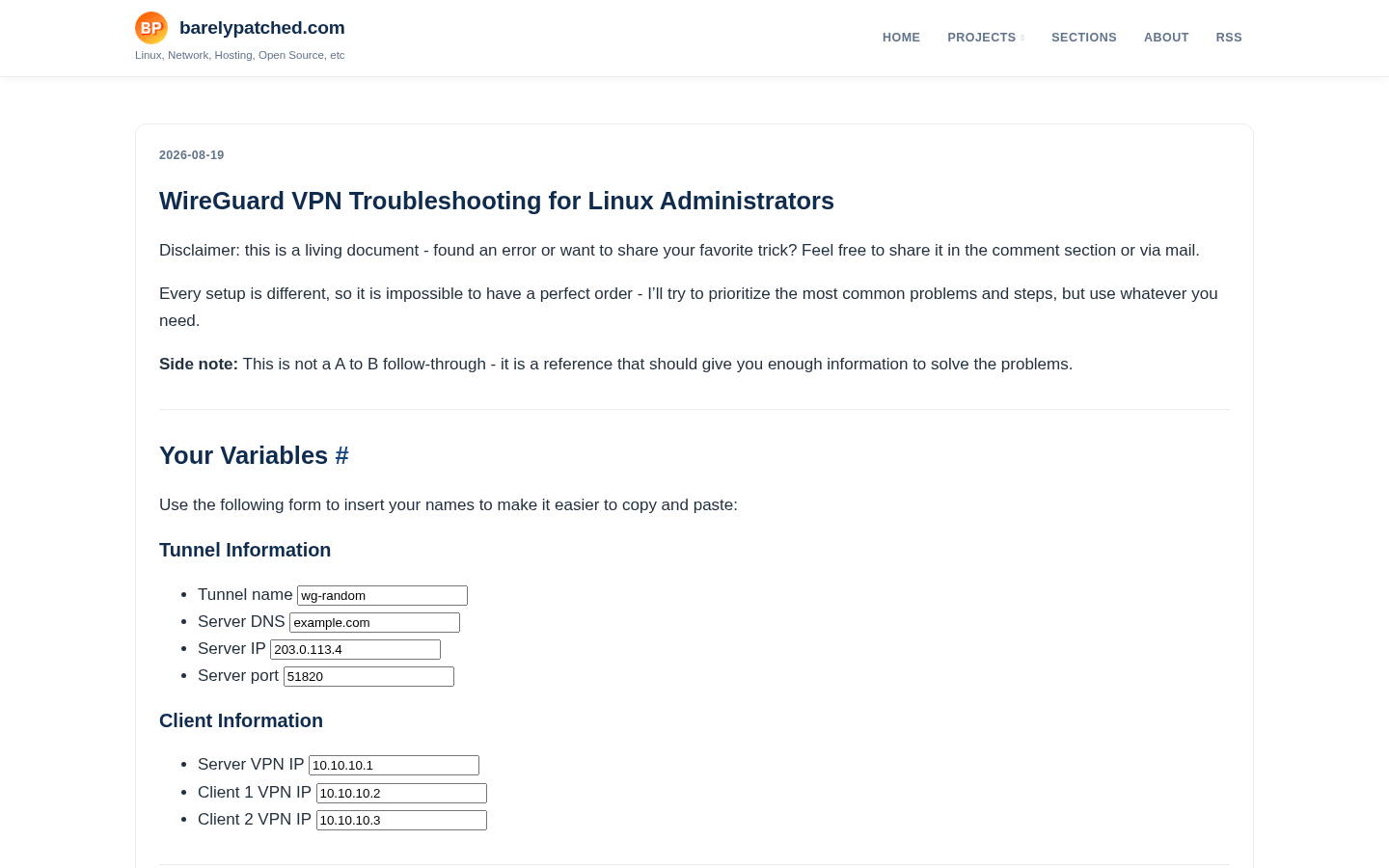
barelypatched.com published "WireGuard VPN Troubleshooting for Linux Administrators," byline whatbackup, laying out a troubleshooting path aimed at Linux admins running WireGuard in production. The listing was checked directly on August 29, 2026, confirming the article is live at that URL under that title and byline.
A dedicated troubleshooting guide for WireGuard is a useful marker on its own: it signals the tool has moved past early adoption into the phase where admins need a repeatable diagnostic process, not just a setup tutorial. WireGuard's design — a small, auditable codebase and a stateless handshake — trades away some of the verbose logging that OpenVPN admins are used to, which is exactly why a structured troubleshooting order matters more here than it does on older VPN stacks. Anyone maintaining WireGuard tunnels on Linux servers today is the intended reader for that kind of guide, whether the tunnel is site-to-site or a fleet of road-warrior clients.
The detail
For a reader meeting WireGuard troubleshooting for the first time, the useful mental model is that almost every failure sits in one of three layers, and checking them out of order wastes time.
| Layer | What it governs | Where the fault usually hides |
|---|---|---|
| Handshake | Whether the two peers can authenticate each other | Wrong public key, stale endpoint IP, blocked UDP port |
| Routing | Whether traffic actually enters and exits the tunnel interface | AllowedIPs misconfigured, missing route, MTU mismatch |
| Firewall / NAT | Whether the host or network lets the traffic through | Local iptables/nftables rules, upstream NAT not forwarding the UDP port |
The practical sequence: confirm the handshake first, because nothing downstream matters if peers can't authenticate. wg show reports the latest handshake timestamp per peer directly from the kernel or userspace implementation — no separate log file to hunt down. If that timestamp is stale or absent, the fault is almost always a key mismatch, an endpoint address that changed, or a blocked UDP port between the peers, not a routing or firewall problem.
Once the handshake is current but traffic still doesn't flow, the fault has moved to routing. AllowedIPs in the WireGuard config does double duty — it's both a routing table entry and a packet filter, which trips up admins coming from other VPN tools where those are separate concepts. A peer that shows a good handshake but no traffic almost always has an AllowedIPs range that doesn't cover the destination, or a route on the other end that never got added.
If handshake and routing both check out, the remaining fault sits in the firewall or NAT layer: local iptables/nftables rules dropping forwarded packets, or an upstream router/NAT device that isn't forwarding the tunnel's UDP port. This is also where an MTU mismatch tends to surface — the handshake completes and small packets pass, but anything that would need fragmentation stalls, which looks like a routing problem but isn't.
Best for: Linux admins who already have a working WireGuard config and need a repeatable way to isolate why a specific tunnel or peer stopped working.
Skip it if: you haven't set up WireGuard yet — this is a diagnostic order for existing tunnels, not an installation walkthrough.
What it means for you
A WireGuard tunnel that passes every check above is only doing its job if the thing on the other end of it — the app, API, or internal tool the tunnel is protecting — is itself reachable and running predictably. Troubleshooting the tunnel in isolation doesn't tell you anything about whether the hosting layer behind it is set up the same way: correct build pipeline, correct network exposure, no surprise cold starts that look like a dead tunnel when they're actually a dead app.
That's a separate decision from which VPN you run, and it's worth checking independently rather than assuming your current hosting setup matches what a security-conscious deployment actually needs. If you're re-evaluating what sits behind the tunnels you maintain, See current pricing at the merchant to see what a deployment plan looks like for teams that need predictable network behavior around the apps their VPN is protecting.
The decision in front of you isn't which troubleshooting guide to bookmark — it's whether your current diagnostic order (handshake, then routing, then firewall) is already how your team debugs a dead tunnel, and whether the infrastructure on the other side of that tunnel has had the same level of scrutiny.
What this costs right now
Vercel
The last check on this price fell outside our freshness window, so no figure is shown.
Check the current price at VercelPrices move. We print the figure we read and the moment we read it, and suppress anything older than its window rather than guess at the current number.